| By product |
| Other |
|
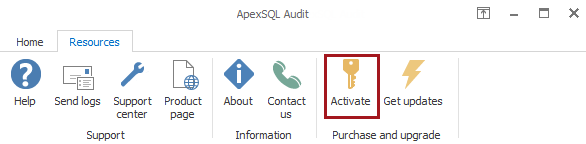
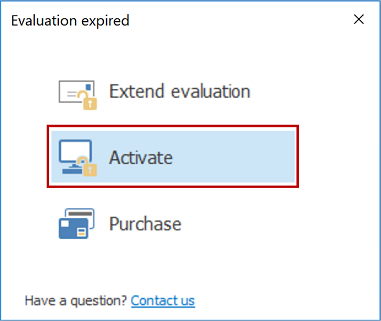
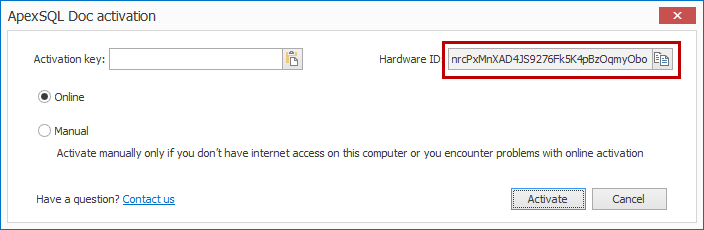
Knowledgebase Tips and How-to Articles for ApexSQL Tools How do I get my hardware ID? Description This article describes the different ways you can get your hardware ID Obtaining hardware ID for an ApexSQL client tool ApexSQL Developer tools (i.e. ApexSQL Diff) are installed and activated per client. The relevant hardware ID is for the client computer the software is installed on 1) You can get your hardware ID from the Activation Form that pops up opens when you start your ApexSQL software if you're using the trial version: ![]() 2) If the trial period of your software has not yet expired or if you're using an already activated software, you can start the application and go to Help | About to get the hardware ID: ![]() 3) If for any reason you can't access any of the above forms because you can't start your ApexSQL product, install another ApexSQL product using the ApexSQL installer. Next, use #1 or #2 to get the hardware ID Obtaining hardware ID for an ApexSQL server tool ApexSQL enterprise tools (i.e. ApexSQL Log) are installed and activated per server. The relevant hardware ID is for the server computer the software is installed on 4) For per server tools it is the server computer, not the client, that is activated, so the hardware ID of the server is required If the trial period has expired and you are unable to successfully connect to the server, execute the following commands on your SQL Server: a) For ApexSQL Log 2005 EXEC master.dbo.xp_ApexSqlLog 20061002 b) For ApexSQL Log 2008 EXEC master.dbo.xp_ApexSqlLog2008 20061002 b) For ApexSQL Log 2010 EXEC master.dbo.xp_ApexSqlLog2010 20061002 d) For ApexSQL Recover 2008 EXEC master.dbo.xp_ApexSqlRecover2008 20061002 e) For ApexSQL Recover 2011 EXEC master.dbo.xp_ApexSqlRecover 20061002 Note that per server tools must be installed on the server computer to execute these statements Last updated November 24, 2011 Labels: General |